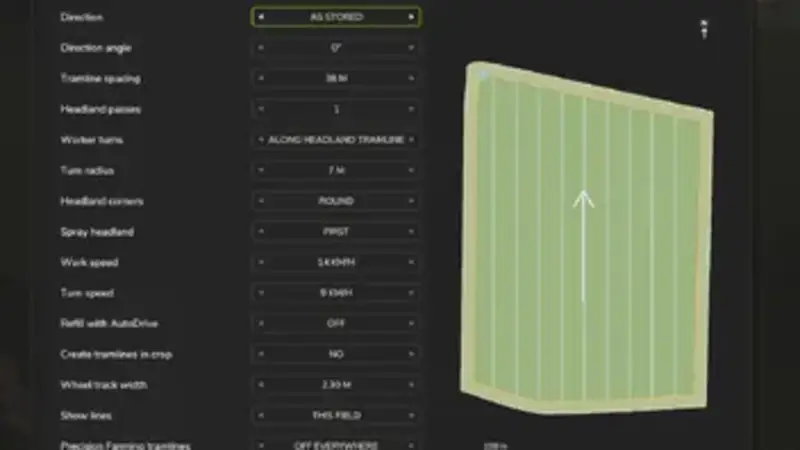
Tramline Pilot – AI Assistant for Controlled Tramlines
The Tramline Pilot automatically creates, marks and follows tramlines in the agricultural simulator. The AI helper turns safely and sprays or spreads only along the marked tramlines, preventing crop damage and avoiding unnecessary passes across the field.
The system follows the Controlled Traffic Farming principle. Once created, tramline layouts can be saved and reused in subsequent seasons. Precision Farming is not required, while AutoDrive can be used for automatic refilling.
Installation
- Extract the FS25_TramlineSystem.zip archive into Documents/My Games/FarmingSimulator2025/mods.
- Enable the Tramline Pilot mod in your save game.
Quick start
- Enter the field and press Right Ctrl + M to open the setup menu.
- Set the tramline spacing to match the working width of your sprayer or spreader.
- Choose the travel direction and number of headland passes.
- Press Enter to generate the system.
- Drive onto the yellow-marked headland tramline.
- As soon as the green Start here marker appears, press Alt + T.
Important settings
- Travel direction: along the longest field edge, based on vehicle orientation, using A-B points or with a custom angle
- Tramline spacing: 6–60 m
- Headland passes: 0–4
- Turning radius: 4–15 m
- Track width: 1.50–4.00 m
- Headland corners: rounded or created by reversing into the corner
- Headland treatment: first, last or disabled
- Working and turning speed
- Automatic refilling via AutoDrive
- Creation of narrow tire tracks or continuous 3 m tramlines in the crop
- Display of tramlines for a single field or all fields
- Disabling Precision Farming tramlines on the selected field or on every field
Line colors
- White: main tramlines
- Yellow: headland tramlines
- Green: next spraying route
- Blue: travel without an active implement
- Green flag: start point
- Checkered target flag: end point
Workflow
Drive onto a tramline and press Alt + T. The helper follows the generated layout without leaving it. Press Alt + T or Alt + Q to end the task. Unfinished jobs are saved and can be resumed later.
Automatic refilling
Place an AutoDrive point at the field edge as the first destination and the refill point as the second destination. When the tank is empty, the helper folds the implement, follows the tramlines to the refill point, hands the refilling process over to AutoDrive and returns to the interrupted point to continue working.
Saved and physical tramlines
Press Space in the setup menu to load a saved layout. Saved layouts can be reused on the same map across different save games. In addition to the displayed lines, physical tire tracks or complete 3 m tramlines can be created in the crop.
Controls
- Right Ctrl + M: setup menu
- Alt + T: start or stop the helper
- Alt + Q: stop the helper
- Alt + 4: show or hide the lines
- Alt + 1 / Alt + 2: place A-B points
If you encounter a problem, please report it in the comments. If the issue has already been reported, add your information to the existing report.
Comments
You must be logged in to comment.
No comments yet.